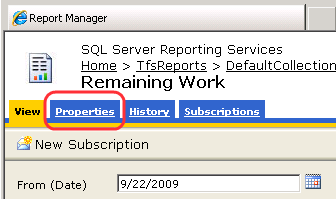
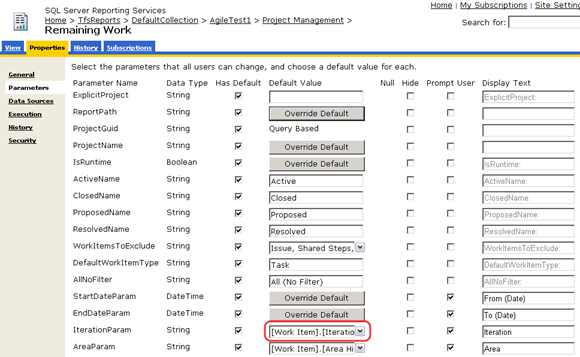
There have been some major changes in the reporting infrastructure for the forthcoming 2010 release of Team Foundation Server. You can find a blog entry on these changes here, written by the Program Manager on the team that made these changes:
In this blog post I’m going to dive deep into the details on how to modify reports to work with the new schema. But first, some definitions and background.
Update: Although I originally wrote this post for Beta 1, most of the information still applies. Some things have changed, and you’ll find the details here: Upgrading Team Foundation Server 2008 Reports to 2010, Part II
Definitions
| Term | Description |
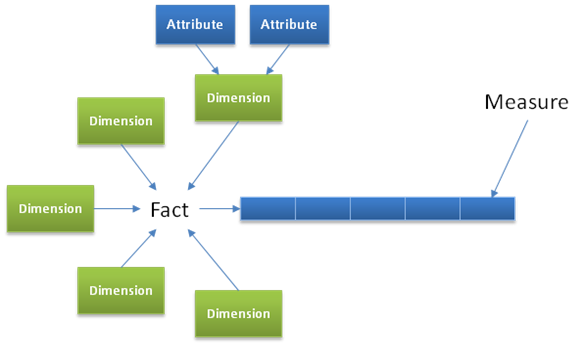
| Dimension | The dimensions in a cube are at the heart of what makes a cube useful for slicing data in many ways. Data values are associated with a set of dimensions, allowing you to show aggregate results sliced using a specific set of dimension values. |
| Fact | Data that can be associated with multiple dimensions. This data may also be aggregated. Fact tables hold these values. |
| Attribute | Under each dimension you’ll find a set of attributes and possibly hierarchies (area and iteration are a hierarchies). Each attribute is connected to a column in the corresponding dimension table in the warehouse. |
| Measure | Measures are values that correspond to columns in the corresponding fact table. |
SQL Server 2008
The new version of Team Foundation Server requires SQL Server 2008, which brings a set of changes with it. I wrote a previous blog post on changes that might affect your existing queries:
One significant change is the tools you’ll be using. You’ll need to use the 2008 version of Report Designer, which has a number of UI changes that take a little getting used to. In particular, the entire experience with working with queries has changed dramatically. The 2005 version of Report Designer used three tabs for Data, Layout, and Preview:

The Data tab is now gone in the 2008 Report Designer, and has been replaced with the Report Data docking window:
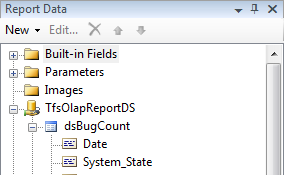
You use this new window to edit and create data sources and report parameters. Editing of data sets is now done in a dialog box that you get to by double-clicking on a dataset, such as dsBugCount in the image above.
Many of the reports shipped with Team Foundation Server use hand-written MDX for their queries (the other reports use hand-written SQL). As such, if you need to change a query, you’ll be editing the actual query code. Double-clicking on a data set will produce the following dialog:
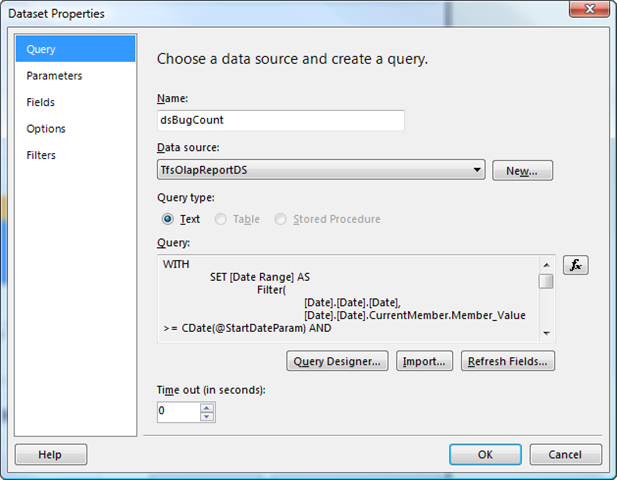
This dialog box is the new location for working with query parameters, fields, etc. To edit the query, click on the Query Designer button.
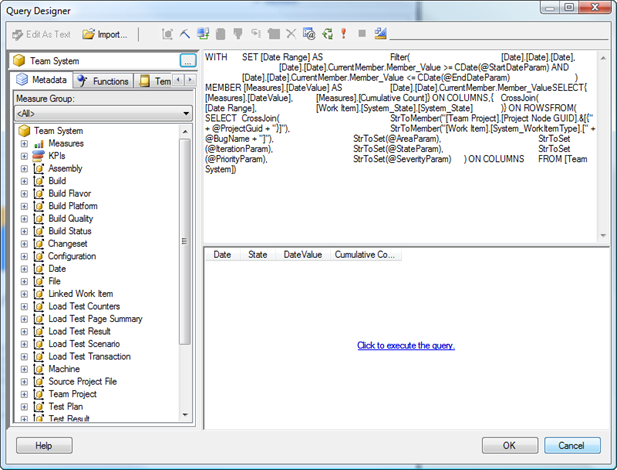
There is a limitation of this query designer that you’ll likely notice right away—whereas MDX in the 2005 Report Designer was formatted with syntax coloring, the new Query Designer has no formatting for queries, making it difficult to edit the queries.
I’ve found the easiest way for me to edit queries with syntax color support is to use this approach:
- Copy the query from the Query section of the Dataset Properties window (which does have correct line breaks).
- Paste the query into a session of SQL Server Management Studio.
- Copy and paste the modified query into the Query Designer dialog box for testing and saving back to the report.
Updating Reports
Updating a Team Foundation Server 2008 report to work with the 2010 version requires making a number of changes. The details of these changes are described in the following sections.
MDX Changes
Here is a brief list for MDX reports against the cube:
- Use the new data source names
- Filter on Project GUID. This involves adding some new parameters and a new dataset
- Update/replace queries use for area/iteration parameters
- Replace WHERE clauses with sub-cube expressions
- Rename dimensions/attributes whose names have changed
SQL Changes
If you’re working with the SQL warehouse, the changes are also significant. Here is a brief overview of the changes you’ll need to make:
- Use the new data source names
- Filter on Project GUID
- Use the new public views when possible
- Make sure your joins use unique keys. For example, work item IDs are no longer unique within the warehouse
- Rename all table references because all table names have changed
Data Source Rename
You’ll find that the names of the Reporting Services data sources used by reports have changed:
| 2008 Name | 2010 Name |
| TfsReportsDS | Tfs2010ReportsDS |
| TfsOlapReportsDS | Tfs2010OlapReportsDS |
The new names exist to accommodate upgrading a server where you have an existing set of reports designed for Team Foundation Server 2005 or 2008. Installing the new version creates a new warehouse and cube that use a different, incompatible schema. The new data sources point to the new warehouse and cube, without overwriting the previous data sources.
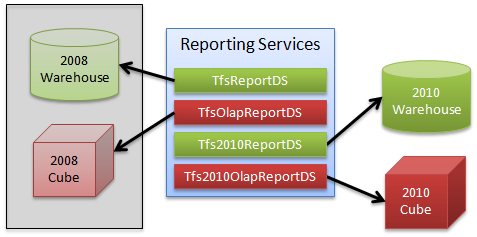
The old warehouse and cube are not removed or overwritten when you upgrade the server so that old reports will continue to work. However, no new data will be added to the pre-upgrade warehouse and cube. Using new data source names allows the old reports, which use the old data sources, to continue to render pre-upgrade data.
You’ll need to make sure reports that you upgrade use the new data source names so they’ll connect to the new cube.
Reports Location
The support for Team Project collections in Team Foundation Server 2010 required some changes to the default location of reports. There were two features driving this change:
- There is now a hierarchy instead of a flat list. For example, you can have a Team Project collection that has some projects under it.
- Team Project names are not server-unique as they were in 2008. A project name has to be unique only within a single collection. In other words, the same project name can exist in two different team project collections.
Because of these changes, reports have a different location on the Reporting Services server. The pattern looks like this:
/TfsReports/Collection0/MyProject
That also means you need to use a different mechanism to obtain the default project associated with a report. In previous version, you could get the default project name from the report’s path and just use that to filter query results.
But with team project collections and 2010, you need to use the project’s GUID instead of the name as a filter since the name by itself may not be unique.
In the warehouse you’ll find a stored procedure you can use to obtain the project’ GUID from the report path, using code like this:
- Create a parameter called ReportPath and move it so it’s the second parameter, after ExplicitProject.
- Add this expression as the default value for the ReportPath parameter:
=IIF(LEN(Globals!ReportFolder) > 0,
    Globals!ReportFolder,
    Parameters!ExplicitProject.Value
)
- Create a SQL dataset called dsProjectGuid that has this query:
SELECT ProjectNodeGuid FROM GetProjectNodeInfoFromReportFolder(@ReportPath)
- Create a parameter called ProjectGuid just after the ReportPath parameter and set the default value to results of the dsProjectGuid dataset.
You will then need to modify your other queries to use the resulting GUID, which is covered below under Cube Improvements.
Warehouse Improvements
For the first time, writing reports against the warehouse using SQL is officially supported. As a rule of thumb, you’ll generally want to use the cube for historical reports, or reports that require a lot of slicing and dicing using parameters of aggregate data. The cube is really good at this sort of work.
The warehouse, on the other hand, allows you to create reports that pull loosely related data together in ways not possible with the cube.
Views
There are now a number of public views to help you work with the warehouse. All of these public views have names that end with “View,” such as WorkItemHistoryView.
Views that begin with “v” and end with “Overlay” are used for processing the cube, and as such aren’t really meant for use in your reports.
Compensating Records
When you work with historical data in the warehouse, you’ll need to be aware of compensating records. You’ll find compensating records in tables/views that include historical information, such as WorkItemHistoryView. Whenever you modify a work item, a pair of records is added to the warehouse. One record “undoes” the most recent previous record, and the next record adds the new settings for that work item. The compensating records allow you use to aggregate functions like SUM in query results.
Also connected with compensating records are two columns: System_ChangedDate and System_RevisedDate. The first column, System_ChangedDate indicates when the change to the work item was made. The other date tells you when the work item was next changed. As an example, suppose that you created a new task at 10:53 on 5/15/2009, and then you modified that work item at 11:23 on the next day. You would then see records like this:
|
System_ChangedDate
|
System_RevisedDate
|
Remaining Work
|
RecordCount
|
|
10:53 5/15/2009
|
11:23 5/16/2009
|
20
|
1
|
|
10:53 5/15/2009
|
11:23 5/16/2009
|
-20
|
-1
|
|
11:23 5/16/2009
|
0:00 1/1/9999
|
10
|
1
|
The first record was the original record, and you can see that it was revised at 11:23. The next record “cancels out” the first record, and was added at the same time as the third record. Finally, the third record is the current record, as indicated by the System_RevisedDate set to the maximum value for a DATETIME column. As a result, you can write a query that will return the current remaining work correctly like this:
SELECT SUM(Microsoft_VSTS_Scheduling_RemainingWork)
  FROM WorkItemHistoryView WHERE System_Id = 108
   AND ProjectNodeGUID = 'A8657108-E085-4DE5-B14C-97DAA378D46E'
That being said, you’ll get better performance if you use an “As Of” query instead of using SUM.
As Of Queries
The query above returns the “current” results. But what if you want to obtain the results as of a specific day? Let’s say you want to find out the remaining work as of the end of 5/15/2009. Looking at the end of a given day will give you the same results as you’ll get from the cube. Here is what that query will return the remaining work as of the end of 5/16/2009:
SELECT System_Id, Microsoft_VSTS_Scheduling_RemainingWork
  FROM WorkItemHistoryView WHERE System_ChangedDate < '5/16/2009'
   AND System_RevisedDate >= '5/16/2009'
   AND RecordCount > 0
   AND ProjectNodeGUID = 'A8657108-E085-4DE5-B14C-97DAA378D46E'
Here’s how this works. We want to return only the last records for each work item that was modified before 5/16/2009. The System_RevisedDate clause ensures we retrieve only the last record that was modified before 5/16/2009 because it finds the one record that was both modified before and revised after this date (or not revised at all, in which case the date is in the year 9999).
Additionally, you’ll notice this query tests for a positive RecordCount. Compensating records that cancel out a previous record always have a RecordCount of -1.
Uniqueness of ID Values
One new feature of Team Foundation Server 2010 is the support for team project collections, which is a group of team projects. Entire team project collections can be moved from one server to another. As a result, the IDs of work items are unique only within a single team project collection, but they may not be unique on a server that contains records from more than one team project collection. That is why the query in the previous section includes a filter on the project GUID in addition to the work item ID.
Table Names
Most table names have been changed in Team Foundation Server 2010. In previous versions, many of the table names had space in them, which created problems with some reporting tools. In the new warehouse, names do not have spaces, and they also have a prefix to indicate their use:
|
Prefix
|
Description
|
|
Dim
|
The table contains dimension data, which means the data will appear in the dimensions part of the cube. There is usually one column for each attribute or hierarchy that belongs to the dimension.
|
|
Fact
|
The values of cells in the cube, which show up via measures. Fact tables have foreign keys to various dimension tables.
|
As an example, the FactWorkItemHistory table contains a column called StateChangeCount that appears in the cube under measures, in the Work Item History measure folder.
Additionally, the DimWorkItem table shows up in the dimension hierarchy under Work Item.
Renaming the tables this way makes it easier to see the connection between tables in the warehouse and their corresponding entities in the cube.
Cube Improvements
The team working on the warehouse and cube had several goals when they set out to change the cube design:
- Make the cube more usable
- Increase query performance
- Improve translation and load performance
Previous versions of the cube had a lot of dimensions, a little over 60. The new cube has been restructured to use less than half the number of dimensions. Yet at the same time, there are more ways to slice than before. This “simplification” was achieved by changing what were dimensions in the old version to attributes on closely related dimensions in the new version. For example, the Activated Date dimension became the Activated Date attribute inside the Work Item dimension.
Additionally, because the number of attributes on a dimension can be quite high now, many of the attributes are grouped into attribute folders.
Area and Iteration
Area and iteration used to be dimensions. Now, however, you’ll find area and iteration hierarchies within other dimensions, such as Work Item and Test Result. You’ll need to use the appropriate hierarchy in your query. For example if you’re slicing on test results, you’ll need to use the area/iteration hierarchies within the Test Result dimension.
Because areas and iterations were changed to become attributes and the project name is no longer unique, the queries for the area and iteration parameters are very different from before.
New Parameter Queries
If your report has parameters for area and iteration, you’ll need to modify or replace your queries to use the new structure. In this section you’ll find queries we’ve created for area and iteration lists and default values.
The old structure used a parent/child hierarchy that allowed you to use the project name as a key, making it easy to get the list of available areas and iterations for a team project, as well as the default values.
In the new structure, team project names are not guaranteed to be unique, so using the project name as a key might give you results for more than one team project. Additionally, the hierarchy is now a natural hierarchy rather than a parent-child hierarchy, which means that you don’t have data members that represent a node without children. Instead, the new hierarchies have the equivalent built into the hierarchy so the queries don’t need to check for DATAMEMBER values and format them differently (by enclosing them in parenthesis).
The queries to get the default area/iteration return a single member based on the project GUID by looking only at the direct children of the root. Limiting the scope to just the children of the root keeps the query fast.
Update: The queries for area and iteration no longer work in Beta 2 or later. For more information, see Upgrading Team Foundation Server 2008 Reports to 2010, Part II
dsAreaDefault
WITH
    MEMBER [Measures].[ParameterCaption] AS
        [Work Item].[Area Hierarchy].CurrentMember.Member_Caption
    MEMBER [Measures].[ParameterValue] AS
        [Work Item].[Area Hierarchy].CurrentMember.UniqueName
SELECT
{
     [Measures].[ParameterCaption],
     [Measures].[ParameterValue]} ON COLUMNS,
{
    NonEmpty(
        CrossJoin(
            StrToMember("[Team Project].[Project Node GUID].&[{" + @ProjectGuid + "}]"),
            Descendants([Work Item].[Area Hierarchy].[All].Children, 0)
        ),
        [Measures].[Cumulative Count]
    )
} ON ROWS
FROM [Team System]
dsArea
This data set uses as input the results from the dsAreaDefault query so it will scan only areas in the current project. Limiting the scope to just the children of the default area significantly improves performance of this query.
WITH
    MEMBER [Measures].[Add Spaces] AS
        VBA.Space([Work Item].[Area Hierarchy].CurrentMember.Level.Ordinal * 2)
    MEMBER [Measures].[ParameterCaption] AS
        [Measures].[Add Spaces] + [Work Item].[Area Hierarchy].CurrentMember.Member_Caption
    MEMBER [Measures].[ParameterValue] AS
        [Work Item].[Area Hierarchy].CurrentMember.UniqueName
SELECT
{
     [Measures].[ParameterCaption],
     [Measures].[ParameterValue]} ON COLUMNS,
{
    Descendants(StrToSet(@AreaDefault))
} ON ROWS
FROM [Team System]
dsIterationDefault
WITH
    MEMBER [Measures].[ParameterCaption] AS
        [Work Item].[Iteration Hierarchy].CurrentMember.Member_Caption
    MEMBER [Measures].[ParameterValue] AS
        [Work Item].[Iteration Hierarchy].CurrentMember.UniqueName
SELECT
{
     [Measures].[ParameterCaption],
     [Measures].[ParameterValue]} ON COLUMNS,
{
    NonEmpty(
        CrossJoin(
            StrToMember("[Team Project].[Project Node GUID].&[{" + @ProjectGuid + "}]"),
            Descendants([Work Item].[Iteration Hierarchy].[All].Children, 0)
        ),
         [Measures].[Cumulative Count]
    )
} ON ROWS
FROM [Team System]
dsIteration
This data set uses as input the results from the dsIterationDefault query.
WITH
    MEMBER [Measures].[ParameterCaption] AS
        [Work Item].[Iteration Hierarchy].CurrentMember.Member_Caption
    MEMBER [Measures].[ParameterValue] AS
        [Work Item].[Iteration Hierarchy].CurrentMember.UniqueName
SELECT
{
     [Measures].[ParameterCaption],
     [Measures].[ParameterValue]} ON COLUMNS,
{
    NonEmpty(
        CrossJoin(
            StrToMember("[Team Project].[Project Node GUID].&[{" + @ProjectGuid + "}]"),
            Descendants([Work Item].[Iteration Hierarchy].[All].Children, 0)
        ),
        [Measures].[Cumulative Count]
    )
} ON ROWS
FROM [Team System]
Other Modifications
Project Filter
You’ll need to modify all uses of the project name to use the GUID instead. The old version is on the top, and the new version is on the bottom, with the changes highlighted in yellow.
STRTOMEMBER("[Team Project].[Team Project].[" + @Project + "]"),
STRTOMEMBER("[Team Project].[Project Node GUID].[{" + @ProjectGuid + "}]"),
WHERE Clause
Many of the reports used the MDX WHERE clause to slice the data on team project, as well as other dimensions. However, this doesn’t always work with SQL Analysis Services 2008 because of changes in how queries are processed. Additionally, it’s not as fast as it could be because the slicing is done after the query body has been processed.
A much better approach is to replace the WHERE clause with a sub-cube expression because a sub-cube expression is applied before processing the rest of the query. Here is the before and after:
Before
FROM [Team System]
WHERE
(
    STRTOMEMBER("[Team Project].[Project Node GUID].[{" + @ProjectGuid + "}]"),
    STRTOSET(@IterationParam),
    STRTOSET(@AreaParam),
    StrToMember("[Work Item].[System_WorkItemType].[" + @Bug + "]")
)
Improved
FROM
(
    SELECT
    CrossJoin(
        STRTOMEMBER("[Team Project].[Project Node GUID].[{" + @ProjectGuid + "}]"),
        STRTOSET(@IterationParam),
        STRTOSET(@AreaParam),
        StrToMember("[Work Item].[System_WorkItemType].[" + @Bug + "]")
    ) ON COLUMNS
    FROM [Team System]
)
Complement Changes
Some of the reports used the complement operator (“-“), which performs much the same functionality as the EXCEPT function in MDX. However, these queries used the complement operator inside a WHERE clause in such a way that it produces an error in SQL Analysis Services 2008:
,STRTOMEMBER("[Team Project].[Team Project].[" + @Project + "]")
,-{STRTOMEMBER("[Work Item].[System_State].[System_State].[+@Proposed+]")}
The problem with this statement is that there is no mention of the Work Item dimension elsewhere inside the WHERE clause. What you need instead is exclude a value from a list of values, like this:
EXCEPT(

    Descendants([Work Item].[System_State].[System_State])
    ,STRTOMEMBER("[Work Item].[System_State].[System_State].[+@Proposed+]")
)